What this classroom noise monitor does
This classroom noise monitor turns any laptop, tablet or classroom computer with a microphone into a visual noise meter. Put it on the projector or interactive whiteboard and your students can see how loud the room is without you saying "shh" every two minutes.
The classroom noise monitor has two views:
- Safari animals. While the room stays under your limit, a new animal peeks out of the grass every few seconds: giraffe, elephant, zebra, lion, monkey and hippo. If the room gets too loud, every animal hides and the class has to earn them back by being quiet again.
- Traffic light. Green means the volume is fine, amber means it is creeping up, and red means it is over your limit. This view works well for older students who find the animals too young.
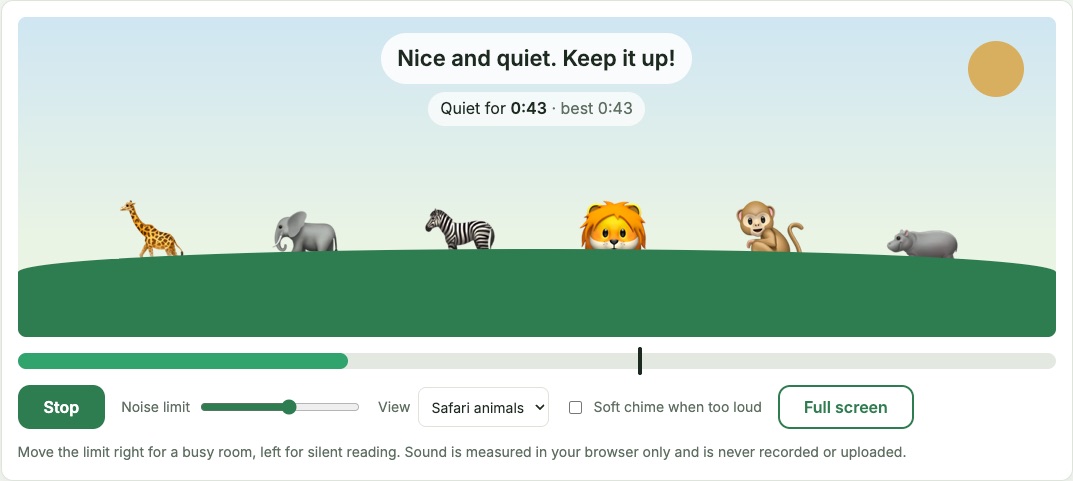
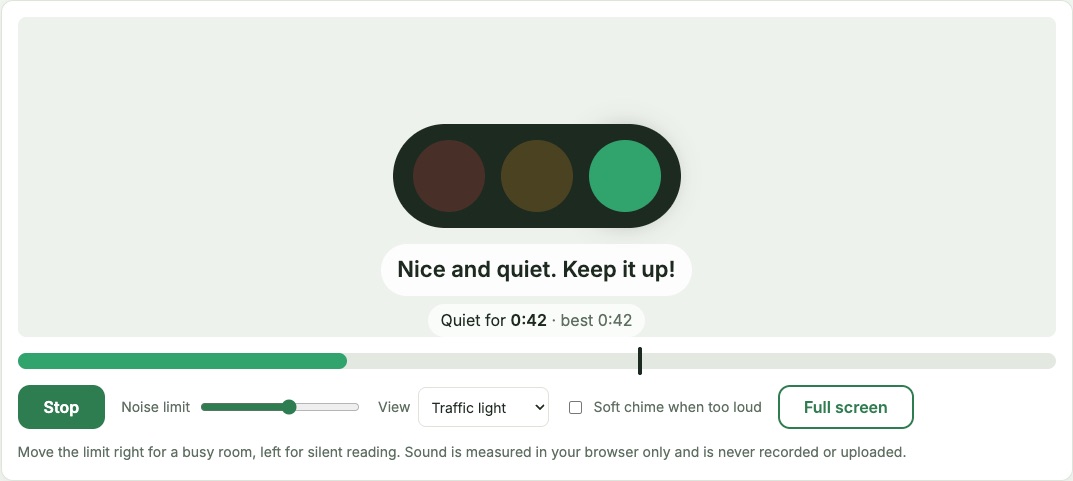
A meter bar under the picture shows the live level, and the black marker shows your limit. The "Quiet for" timer counts how long the class has stayed under the limit, and it shows the best streak of the session, which makes a simple challenge: can we beat our record?
How to use the classroom noise monitor
- Press Start listening. Your browser will ask for permission to use the microphone; choose Allow.
- Let the class talk at the volume you are happy with, and drag Noise limit until the marker sits just above the bar. Silent reading needs a low limit; group work needs a higher one.
- Pick Safari animals or Traffic light.
- Press Full screen so the whole board shows the classroom noise monitor.
- Optional: tick Soft chime when too loud for a gentle two-note sound when the class goes over the limit. The chime will not ring more than once every four seconds.
Press Stop at any time to switch the microphone off. Your limit, view and chime choice are remembered in this browser for next time.
If the meter does not move, see how to fix the microphone on a Chromebook, iPad or Windows laptop.
Choosing the right noise limit
Every room, microphone and laptop is different, so this classroom noise monitor shows a relative level from 0 to 100 rather than decibels. A good way to set it is to practise with the class:
| Activity | Where to put the limit |
|---|---|
| Silent reading or tests | Low, around 25 to 35 |
| Partner talk | Middle, around 45 to 60 |
| Group work or stations | Higher, around 65 to 80 |
| Indoor play or celebrations | Very high, or switch the monitor off |
If the animals hide even when the room feels calm, move the limit to the right. If they never hide, move it to the left. Placing the computer in the middle of the room, rather than next to the noisiest table, gives a fairer reading.
Tips for using a classroom noise monitor
- Teach it first. Spend two minutes showing what "green", "amber" and "red" voices sound like before you rely on the meter.
- Reward the streak, not the silence. Celebrate when the class beats its best quiet time instead of punishing every spike. A sneeze or a dropped book will briefly push the level up; the meter waits a moment before it counts the room as too loud.
- Keep the target realistic. A limit that is too low turns any classroom noise monitor into background noise that students ignore.
- Use it for transitions. Tidy-up time and lining up are when volume usually climbs, and a visible meter helps.
- Turn it off for play. A noise meter is for times when quiet matters, not all day.
Privacy: nothing is recorded
The microphone signal is processed inside your browser to calculate a single loudness number many times a second. This classroom noise monitor does not record, save or upload any audio. When you press Stop or close the tab, the microphone is released. You can read more in our privacy policy.
Classroom noise monitor FAQ
Is this classroom noise monitor free?
Yes. There is no account, no download, no trial period and no paid version. The site may show ads in future to cover running costs, but there are no plans to charge for the classroom noise monitor.
Can I use it on a smartboard or interactive whiteboard?
Yes. Open this page on the computer that is connected to the board, press Start listening, then press Full screen. If the board is a second screen, drag the browser window onto it first. Most boards have no microphone of their own, so the classroom noise monitor listens through the computer's microphone or a USB microphone plugged into it.
Does it work on a Chromebook or iPad?
Yes. It works in recent versions of Chrome, Edge, Safari and Firefox on any device with a microphone that the browser is allowed to use, including Chromebooks and iPads. Nothing needs to be installed.
Why is the meter not moving, or why does it say microphone access was blocked?
The browser asked for permission and it was denied, another app is using the microphone, or a school policy blocks it. Click the lock or camera icon next to the web address, allow the microphone and press Start again. Step-by-step fixes for Chromebook, iPad and Windows are on a separate page.
Does it measure real decibels?
No. Without calibrating each microphone it is not possible to give accurate decibel readings, so the meter shows a relative 0 to 100 level that is easy to set for your own room.
Is this the same as Shy Safari?
No. Shy Safari is a separate classroom app. This is an independent classroom noise monitor with its own safari animal view and a traffic light view.